Jellyfin & Jellyseerr
Stream your media and request new content — all in one place.
-
Jellyfin
Media server for movies, TV shows, and music.
-
Jellyseerr
Request movies and TV shows to be added to the library.
-
Authentication
Both services use your homelab username and password (via LDAP/SSO).
-
Get notified when your requests are ready — via email or web push.
Jellyfin
Jellyfin is a media server for streaming movies, TV shows, and music.
Install Jellyfin Media Player via Homebrew:
Then:
- Open the app and click Add Server.
- Enter
https://jellyfin.hdhomelab.comand click Connect. - Sign in with your homelab username and password.
Renaming in progress
The project is being renamed from jellyfin-media-player to jellyfin-desktop, but no official releases under the new name exist yet. Use jellyfin-media-player for now — the brew cask will continue to work.
Browser vs. client — which should I use?
See the comparison table below.
Streamyfin — free, recommended for most users.
- Install Streamyfin from the App Store.
- Tap Add Server and enter
https://jellyfin.hdhomelab.com. - Tap Connect, then sign in with your homelab username and password.
Tip
Streamyfin supports HEVC, offline downloads and native iOS playback controls.
Infuse — best format support, paid app.
Infuse uses its own decoding engine and handles TrueHD, DTS/DTS-X, FLAC, and a wider range of Dolby Vision profiles that Streamyfin cannot play natively.
Pricing: free tier available (limited features); Pro is $9.99/month or $99.99/year (one-time lifetime purchase occasionally on sale).
- Install Infuse from the App Store.
- Tap Add Library → Jellyfin.
- Enter
https://jellyfin.hdhomelab.comand sign in with your homelab credentials.
Moonfin — free, recommended, supports transcoding fallback, Jellyseerr integration, and SyncPlay.
- Install Moonfin from Google Play.
- Tap Add Server and enter
https://jellyfin.hdhomelab.com. - Tap Connect, then sign in with your homelab username and password.
Tip
Moonfin includes native Jellyseerr support — browse and request content without switching apps.
Findroid — free, native Material Design UI, direct play only.
- Install Findroid from Google Play or F-Droid.
- Tap Add Server and enter
https://jellyfin.hdhomelab.com. - Tap Connect, then sign in with your homelab username and password.
Tip
Findroid uses MPV for playback and supports offline downloads, HEVC, TrueHD, and DTS.
Streamyfin — free, supports both direct play and transcoding.
- Install Streamyfin from Google Play.
- Tap Add Server and enter
https://jellyfin.hdhomelab.com. - Tap Connect, then sign in with your homelab username and password.
Tip
Streamyfin supports offline downloads, Jellyseerr integration, and intro skipping.
Android TV / Google TV / Fire TV
Moonfin — free, recommended, built for TV with transcoding support, Jellyseerr integration, and SyncPlay.
- Install Moonfin from Google Play or the Amazon Appstore.
- Select Add Server and enter
https://jellyfin.hdhomelab.com. - Sign in with your username and password, or use the Quick Connect code shown on screen — enter it at jellyfin.hdhomelab.com/web/#/quickconnect from any browser.
Tip
Moonfin includes native Jellyseerr support — browse and request content without switching apps.
Apple TV
- Install Jellyfin for tvOS from the App Store.
- Select Add Server and enter
https://jellyfin.hdhomelab.com. - Sign in with your username and password, or use the Quick Connect code at jellyfin.hdhomelab.com/web/#/quickconnect.
Roku
- Install Jellyfin for Roku from the Roku Channel Store.
- Enter
https://jellyfin.hdhomelab.comas the server URL. - Enter the Quick Connect code shown on screen at jellyfin.hdhomelab.com/web/#/quickconnect from any browser.
Navigate to jellyfin.hdhomelab.com, enter your homelab username and password, and click Sign in.
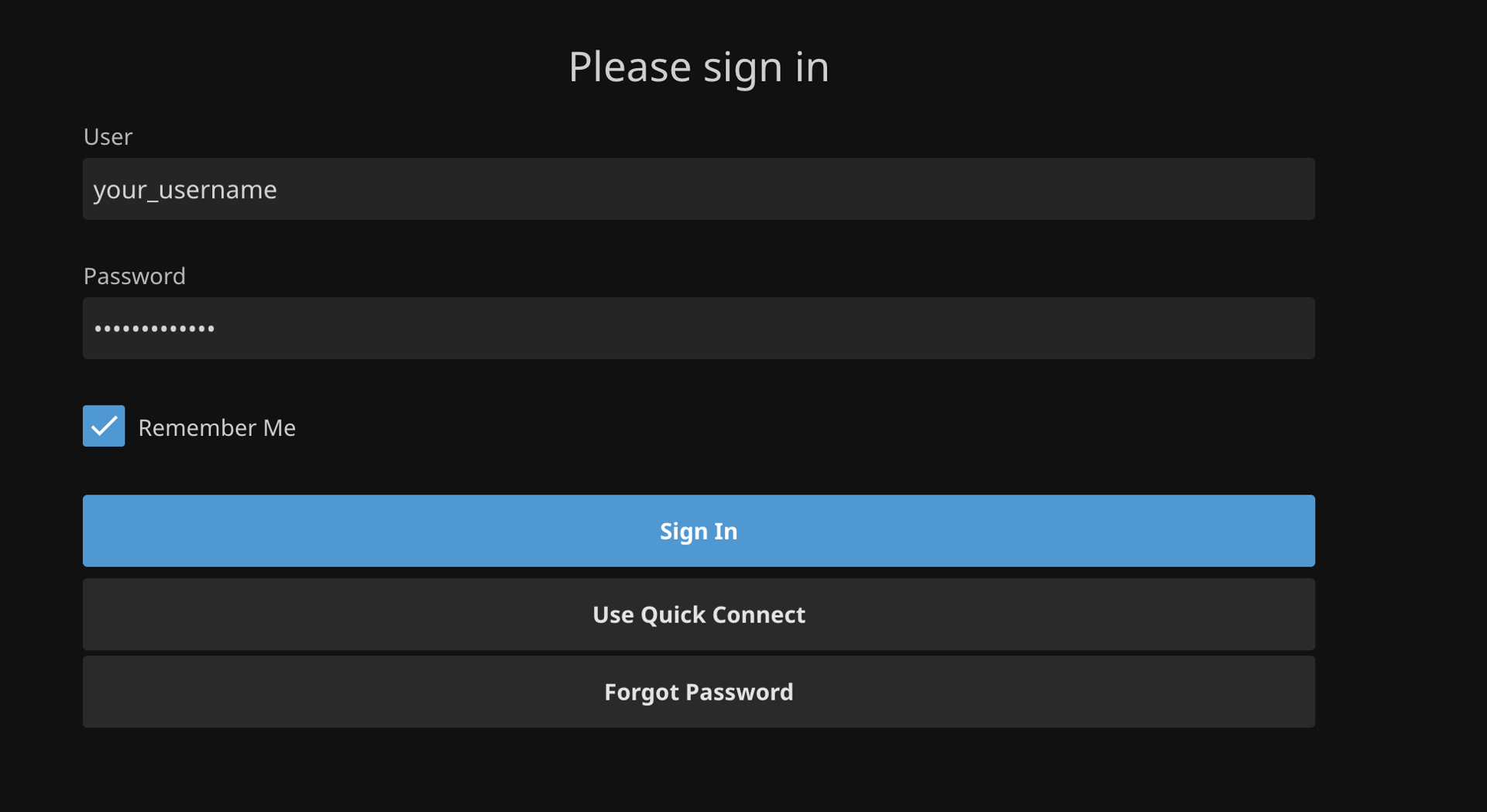
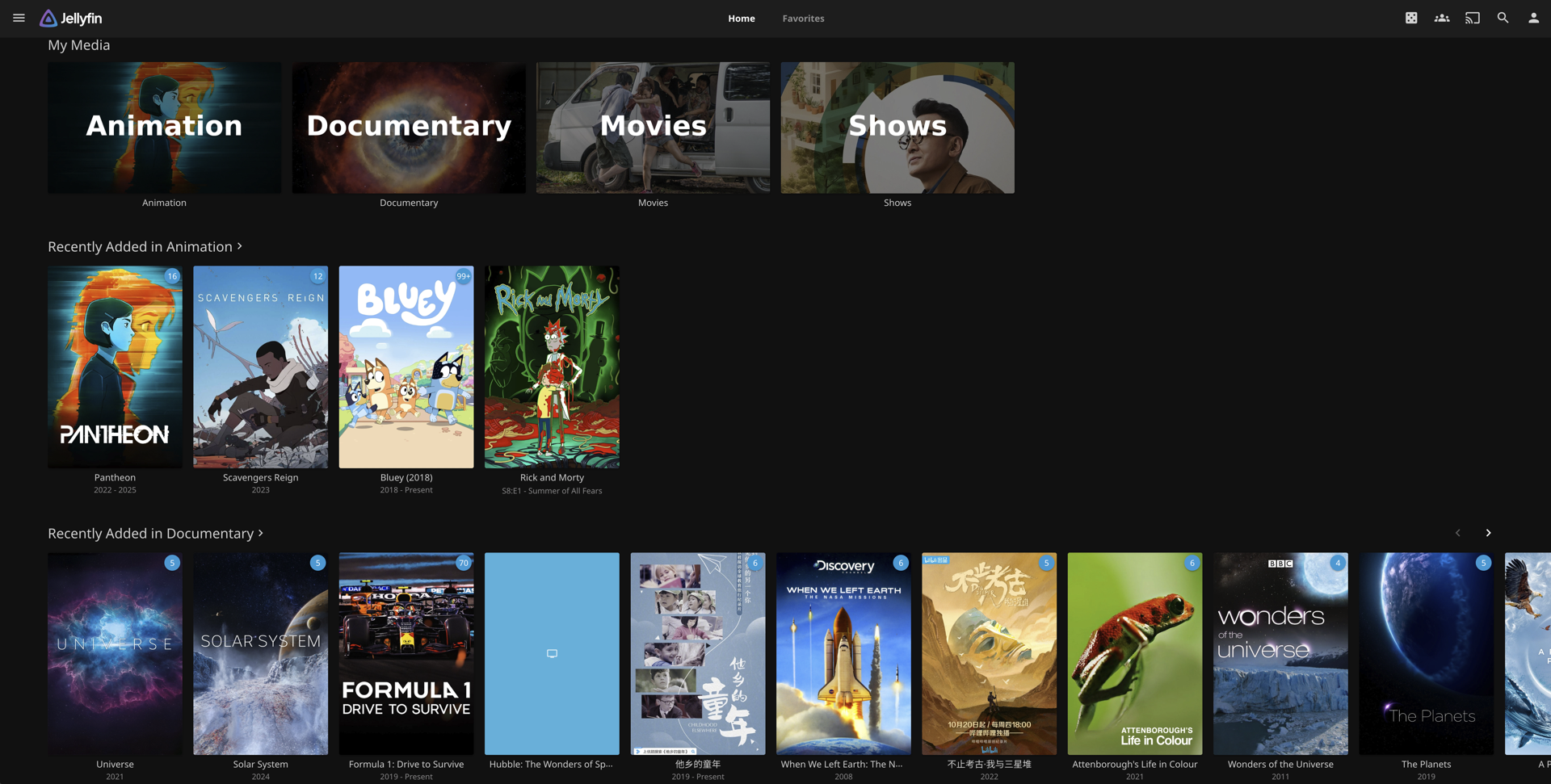
- Use the Home page for recently added content.
- Browse Movies, TV Shows, or Music from the sidebar.
- Click any title → Play to start streaming.
- Playback quality adjusts automatically to your connection; you can override it in the player controls.
Browser vs. Client Playback Support
The browser uses the web player and is limited to codecs the browser natively supports. Native clients use platform decoders or libmpv and can direct-play almost any file. If a video won't play or plays without sound in the browser, try a native client instead.
| Feature | Browser | Desktop client | Streamyfin (iOS) | Infuse (iOS) | Moonfin (Android) |
|---|---|---|---|---|---|
| Price | Free | Free | Free | Free / Pro (see App Store) | Free |
| Video: H.264 | |||||
| Video: HEVC / H.265 | Chrome 107+, Safari; older Firefox | ||||
| Video: AV1 | Chrome/Firefox; Safari A17/M3+ only | (MPV + VideoToolbox) | (hardware decode on supported devices) | ||
| Video: Dolby Vision | Safari (P5); Chrome/Firefox | (Profile ⅝) | (via MPV) | (broader profiles) | (device-dependent) |
| HDR10 / HDR10+ | HDR display required | ||||
| Audio: AAC / MP3 | |||||
| Audio: AC-3 / E-AC-3 (Dolby) | passthrough | (MPV decode) | passthrough | passthrough | |
| Audio: TrueHD / Atmos | passthrough | (MPV decode/downmix; no lossless passthrough on iOS) | (decode to LPCM; no lossless Atmos) | passthrough | |
| Audio: DTS / DTS-X | passthrough | (MPV decode/downmix; no lossless passthrough on iOS) | (decode to LPCM) | passthrough | |
| Audio: FLAC | (MPV) | ||||
| Hardware decoding | Browser-dependent | (iOS VideoToolbox) | (iOS VideoToolbox) | (Android MediaCodec) | |
| Direct play (no transcode) | Rarely | Usually | Usually | Usually | Usually |
| Subtitle: ASS/SSA | |||||
| Offline downloads | (Pro) |
Video won't play? Use a native client
The browser requires the video to be in a format it natively supports. If playback fails or audio is missing, the desktop client or Streamyfin handles a much wider range of formats and will likely work.
Jellyseerr
Jellyseerr is for requesting movies or TV shows to be added to the library.
Signing In
- Click Sign in with Jellyfin.
- Log in with your homelab credentials.
Requesting Content
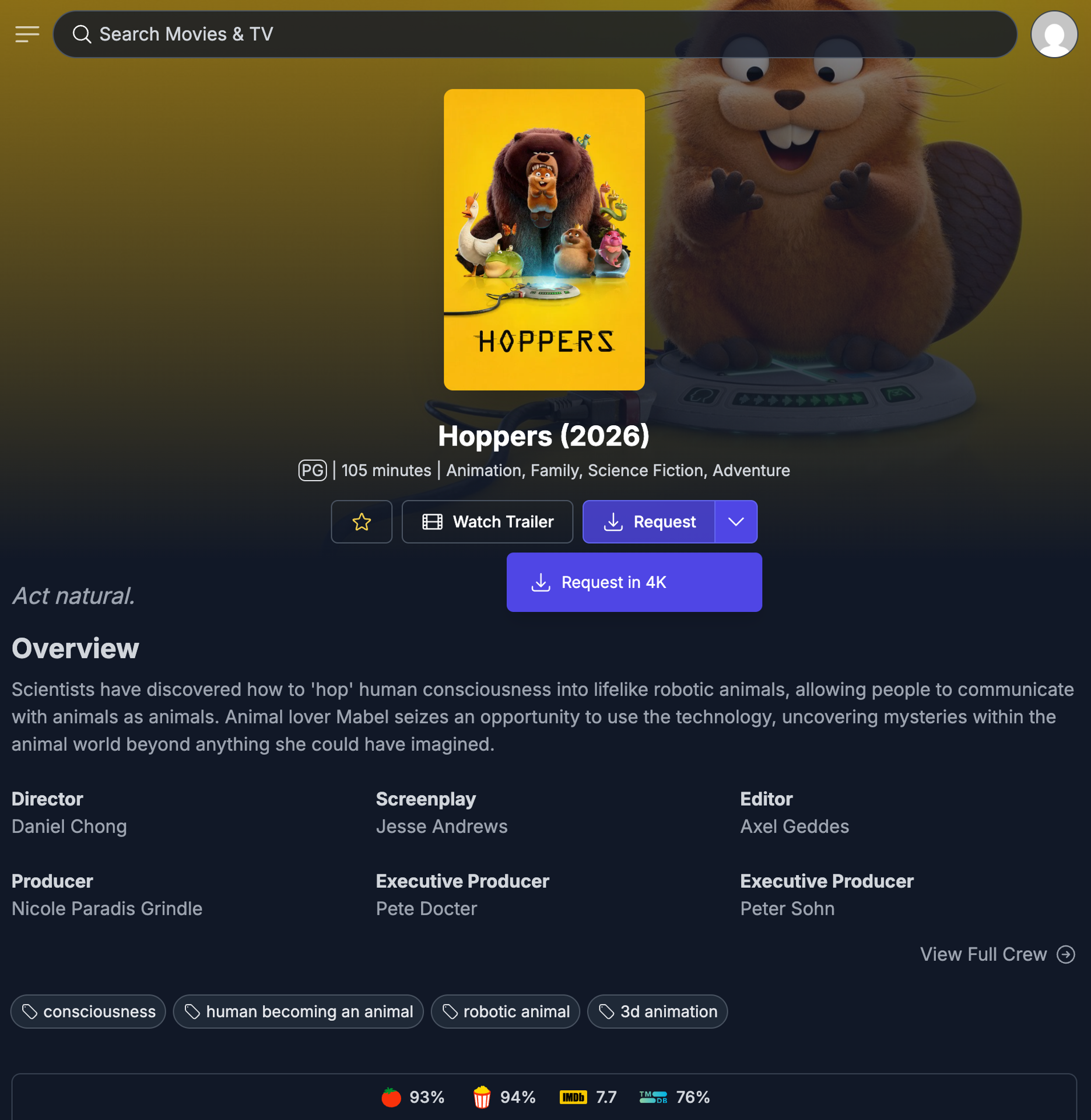
- Use the search bar to find a movie or TV show.
- Click the title → Request or Request 4K.
- For TV shows, you can request specific seasons or everything available.
- Requests are processed automatically. You'll get a notification when the content is ready.
4K is not automatic
4K versions are not requested by default. Open the title and select Request 4K from the dropdown instead of the plain Request button.
Checking Request Status
Go to Requests in the sidebar to track the status of your pending and completed requests.
Notifications
Jellyseerr can notify you when requested content is available or when a request status changes.
Before enabling email notifications, you must set your email address in Jellyseerr:
- Go to your profile → Settings → General.
- Enter your email address and click Save Changes.
Email is not synced automatically
Jellyseerr cannot pull your email from Jellyfin or LDAP — you need to enter it manually.
Then enable notifications:
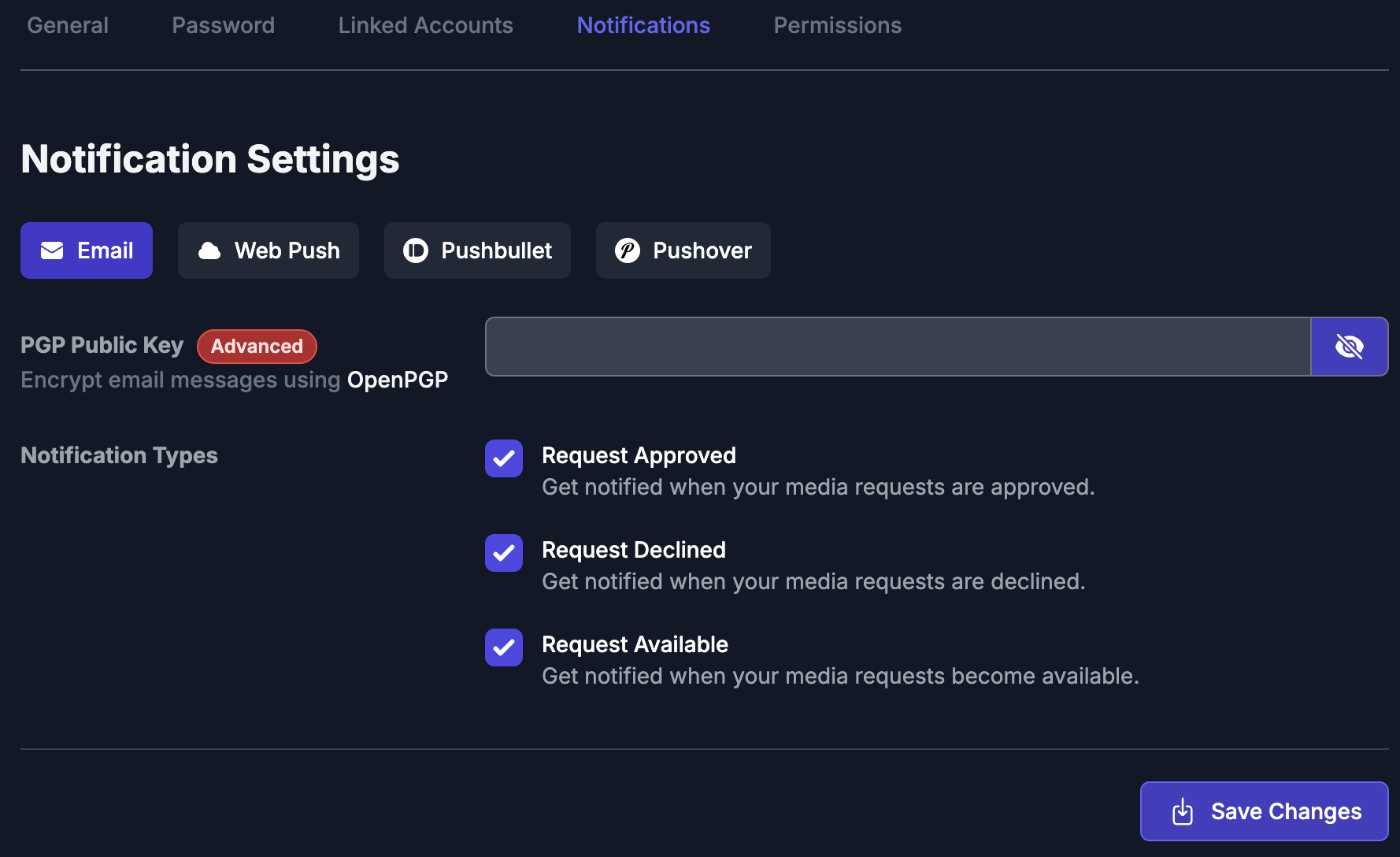
- Go to your profile → Settings → Notifications → Email.
- Check the events you want to be notified about (e.g. Media Available, Request Approved).
- Click Save Changes.
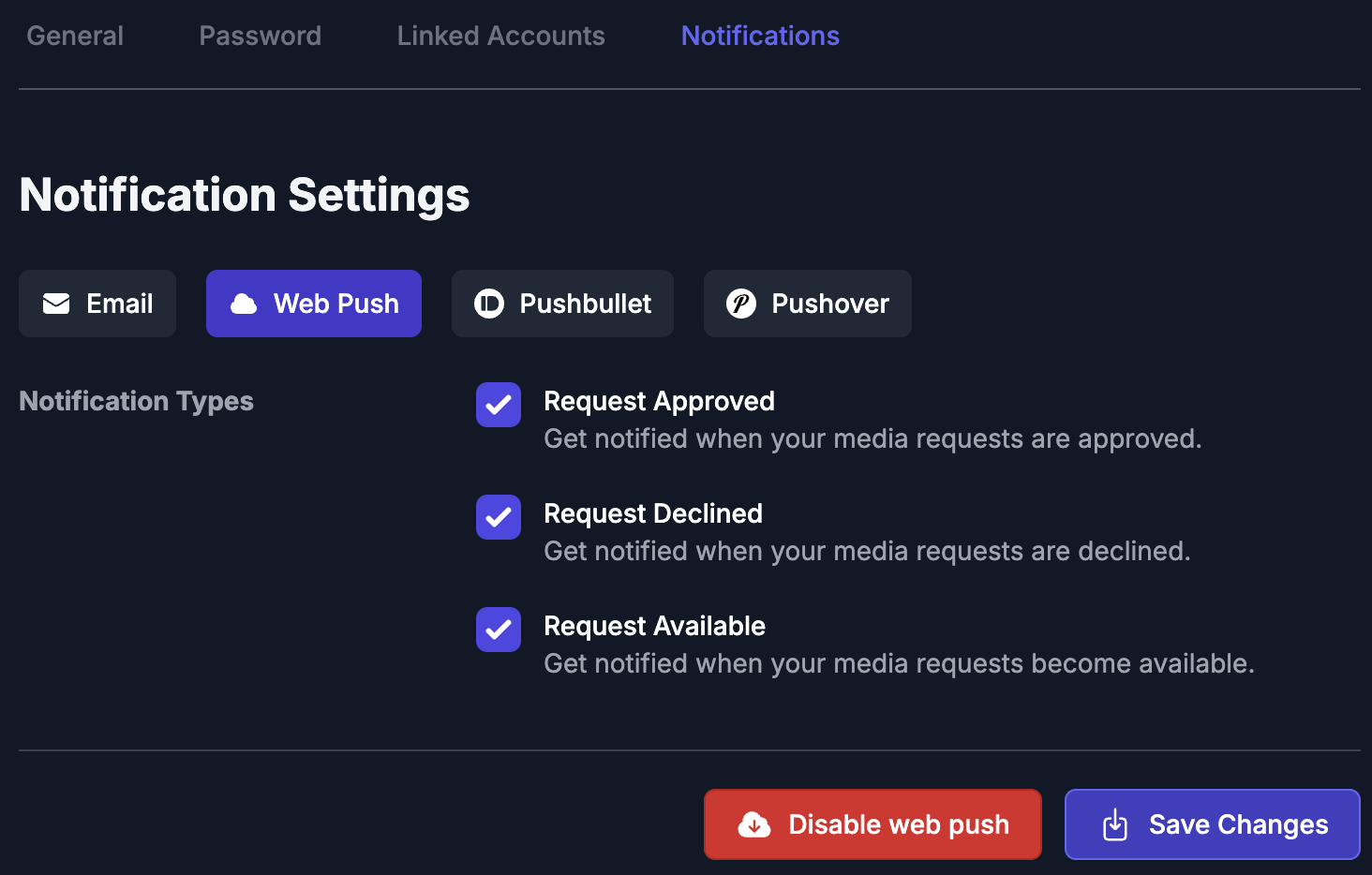
Web push sends browser notifications directly to your device — no email required. Works on desktop browsers and on mobile if you've added Jellyseerr to your home screen.
- Go to your profile → Settings → Notifications → Web Push.
- Check the events you want to be notified about.
- Click Enable web push
- When prompted by your browser, click Allow to grant notification permission.
- Click Save Changes.
Tip
Web push notifications are per-device. If you use Jellyseerr on multiple devices, set this up on each one separately.
iOS users
You may need to enable the Safari notifications feature flag first. Go to Settings → Safari → Advanced → Feature Flags and enable Notifications.